
When I used Windows’ built-in voice typing (dictation) at work, I spoke this sentence:
“This project is about, um, is about an AI solution, which runs, um, runs on local devices, oh no, on local AI PC devices.”
I got this transcript:
“This project is about umm it’s about an AI solution which runs runs on local devices 0 no on local AIPC devices”
It did its job, but it was not very helpful for my work.
But with Typeless, a new voice typing tool, I got this:
This project is about an AI solution which runs on local AI PC devices.Exactly what I wanted.
Tools like Typeless are becoming more valuable for me these days. I spend more time working with AI mainly by speaking to it, so intelligent voice typing has become important for my productivity. I need a tool that can not only translate my voice into text, but also understand my intent and rewrite it into clear language.
This is why Typeless, Wispr Flow, and other similar tools are becoming popular. On top of voice transcription, they use AI to rewrite text so it is clearer and more formal.
This is valuable for many users, but not free for serious use. Both Typeless and Wispr Flow charge $12/month for their paid version.
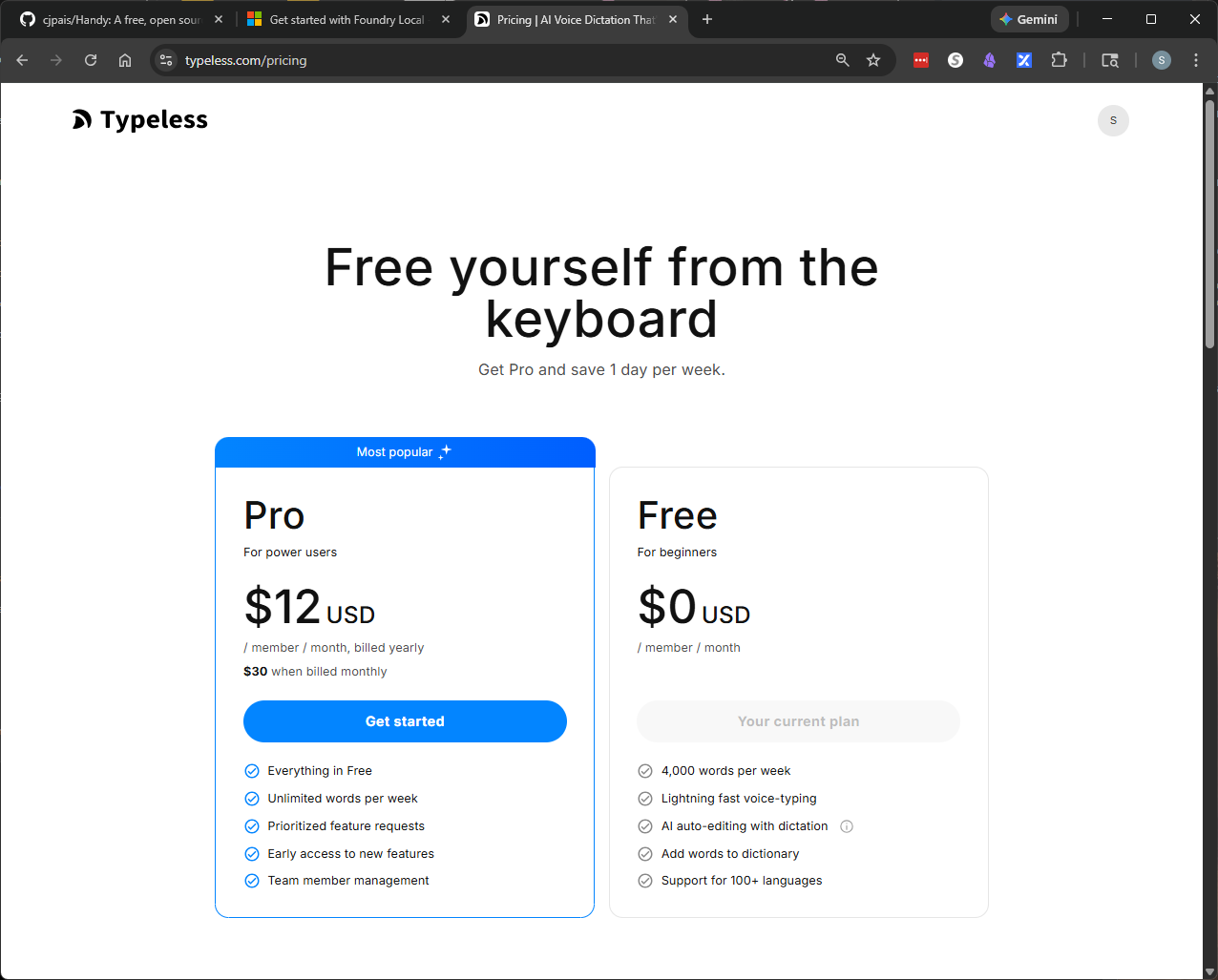
Besides cost, there is also a privacy concern. Typeless and similar products use cloud models for rewriting, which means you have to upload your voice data or transcripts to their platforms. Do you really want someone to have access to every word you voice-type? In an enterprise environment, this becomes a big security issue. Employers definitely will not feel comfortable with third-party companies listening to what employees are saying at work. I think this is probably the biggest obstacle to wide enterprise adoption.
But what if we can make it work fully local? Can we build a tool that rewrites our voice data without uploading anything to the cloud? As PCs become more powerful and more AI-enabled, what used to be impossible might become possible.
Here, I will show exactly how to do it.
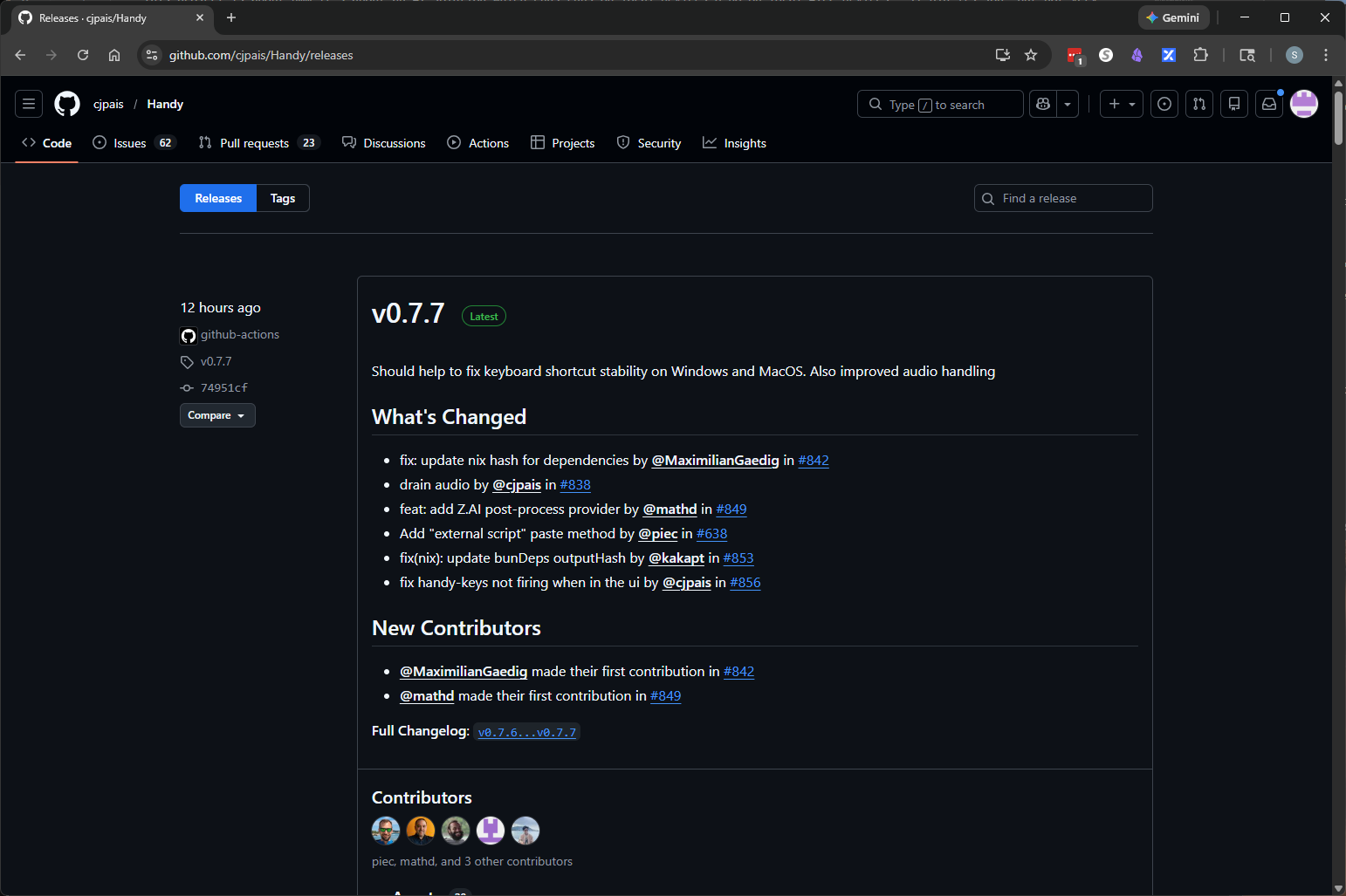
Local voice transcription has been around for a while, and now we have reliable tools for it. Handy is a free and open source tool for voice transcription. It also supports post-processing with local or remote models. Here, post-processing means anything you do to transcript text, such as rewriting, removing profanity, or masking sensitive words. Optimizing transcripts for clarity and professionalism is a perfect post-processing use case. Handy GitHub
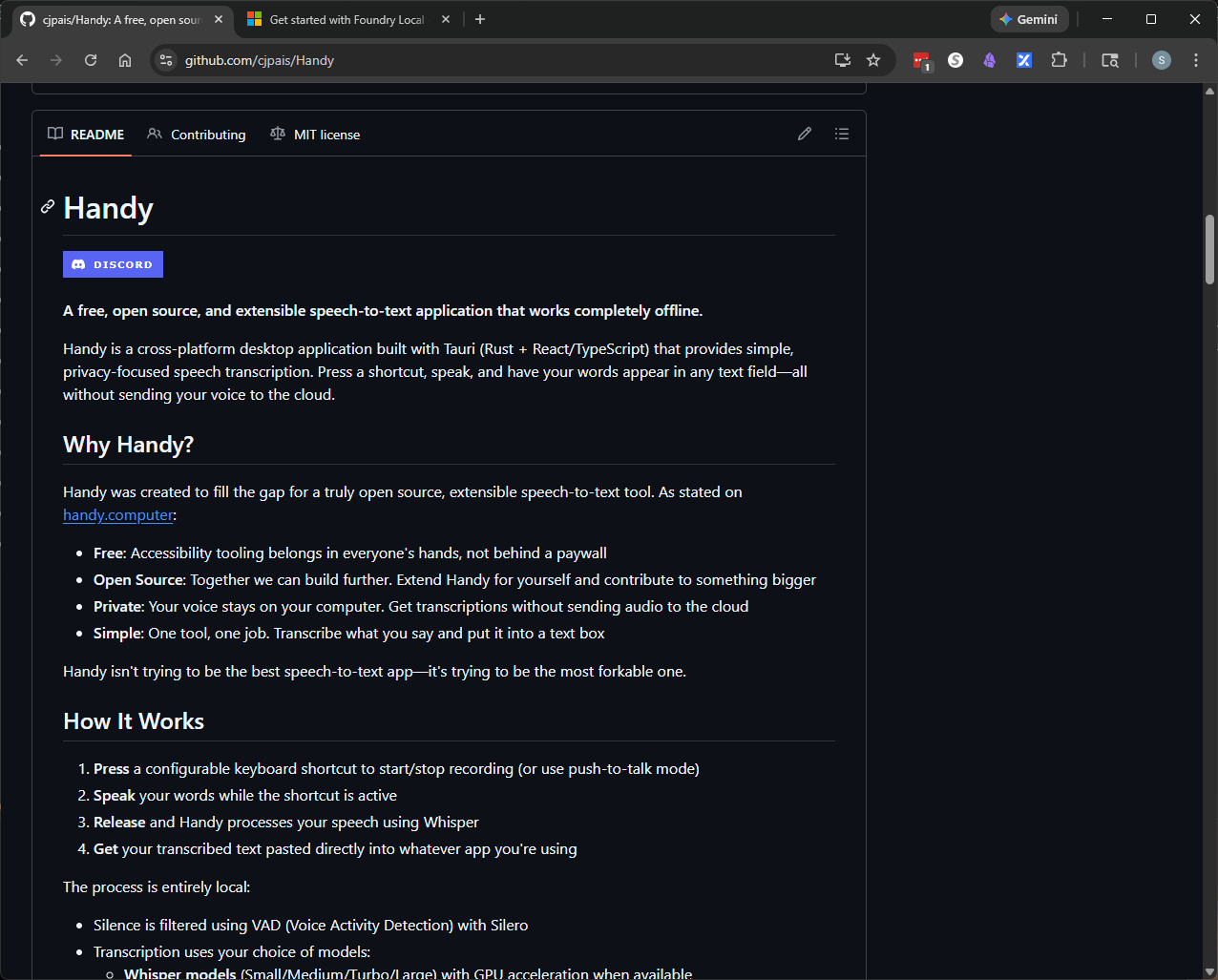
Of course, for local processing, you need to run a local model. On Windows, we have options like Ollama, LM Studio, vLLM, and MS Foundry Local. After a series of tests, I chose Foundry Local as the model engine. I chose it because it is natively supported on Windows, and it automatically selects the most suitable model format for the user’s device, whether it uses CPU, GPU, or NPU. It is also free. In my tests, it gave reasonably fast responses.
For the model, I chose `qwen2.5-7b` because it has a good balance between size and performance. If your PC has limited memory or GPU resources, you can choose `phi-4-mini`, which is smaller but still good enough in most cases. Of course, if you are not satisfied with local model performance, you can always connect to remote models for post processing.
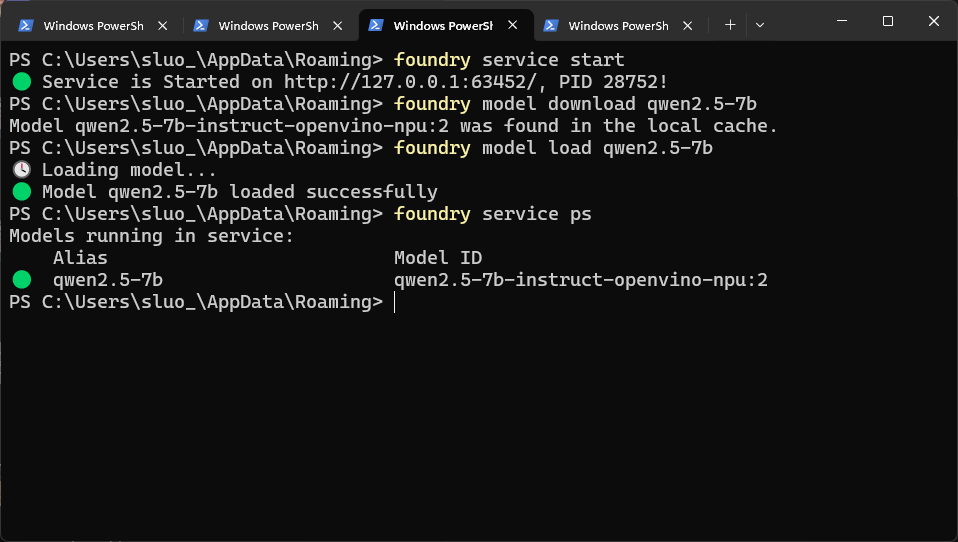
You can follow Microsoft’s Foundry Local homepage to install Foundry Local and set up a local model. For example, I used the following commands to download and set up models with Foundry Local.
In Handy’s settings interface, we first need to turn on experimental features on the Advanced page. Then we need to enable post-processing in the Experimental section. After that, a new Post-process configuration option appears on the left. In this interface, we specify the model provider, base URL, API key, model ID, and the post-processing prompt.
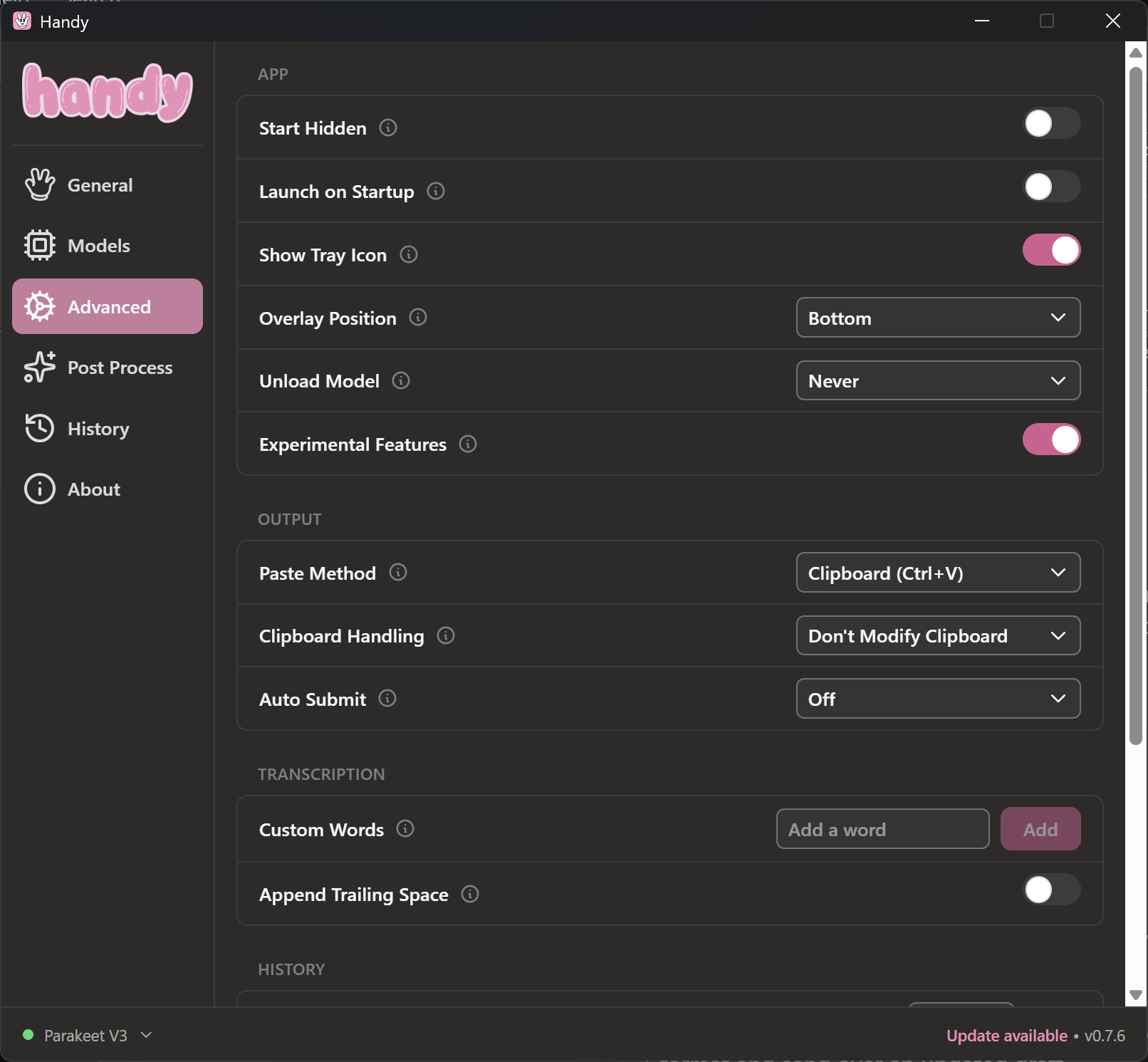
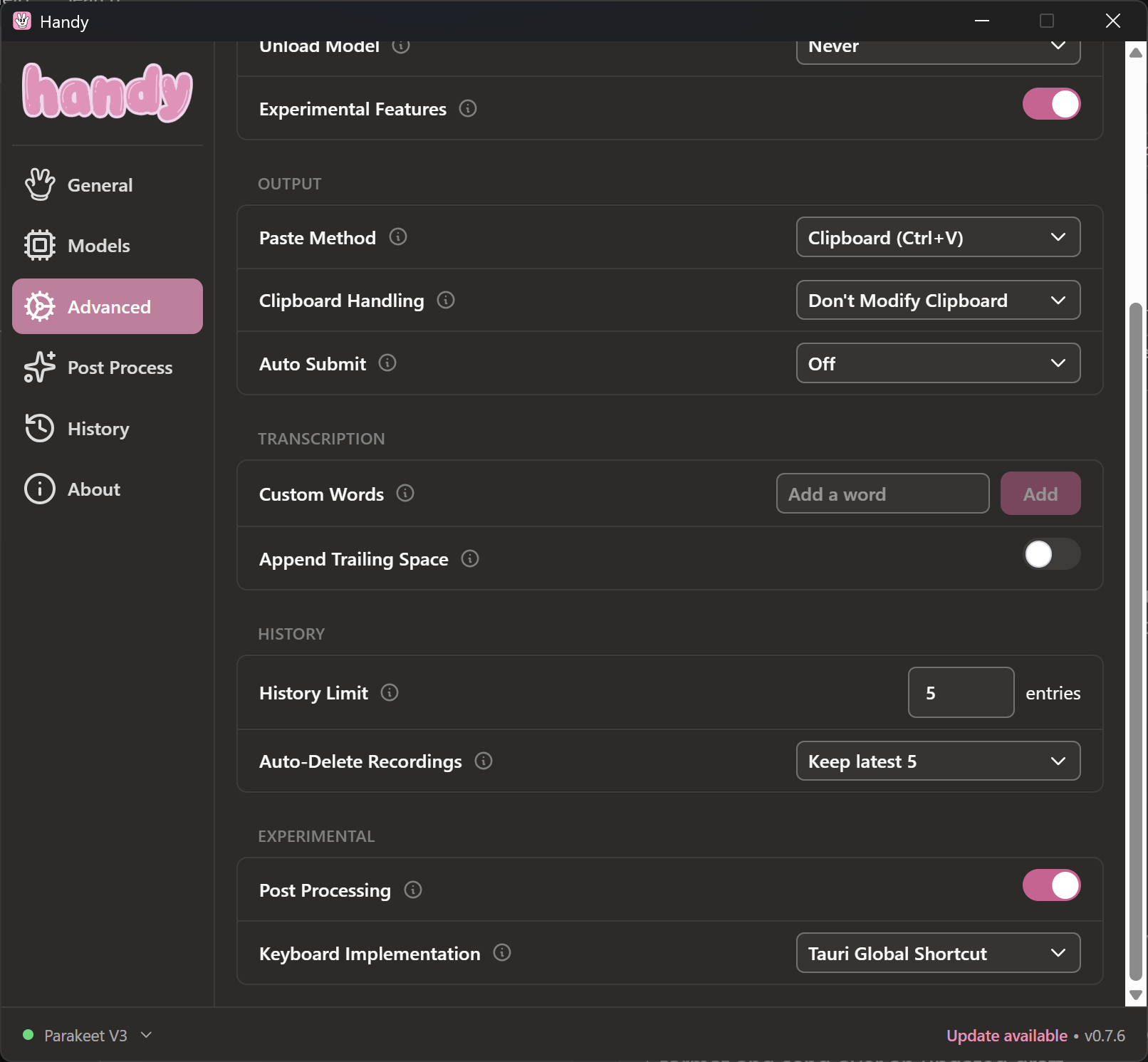
With the information from Foundry Local, we can fill in those options. Note that Handy uses `Ctrl + Shift + Space` for voice typing with post-processing. If you do not want post-processing, `Ctrl + Space` is the default shortcut for transcription only.
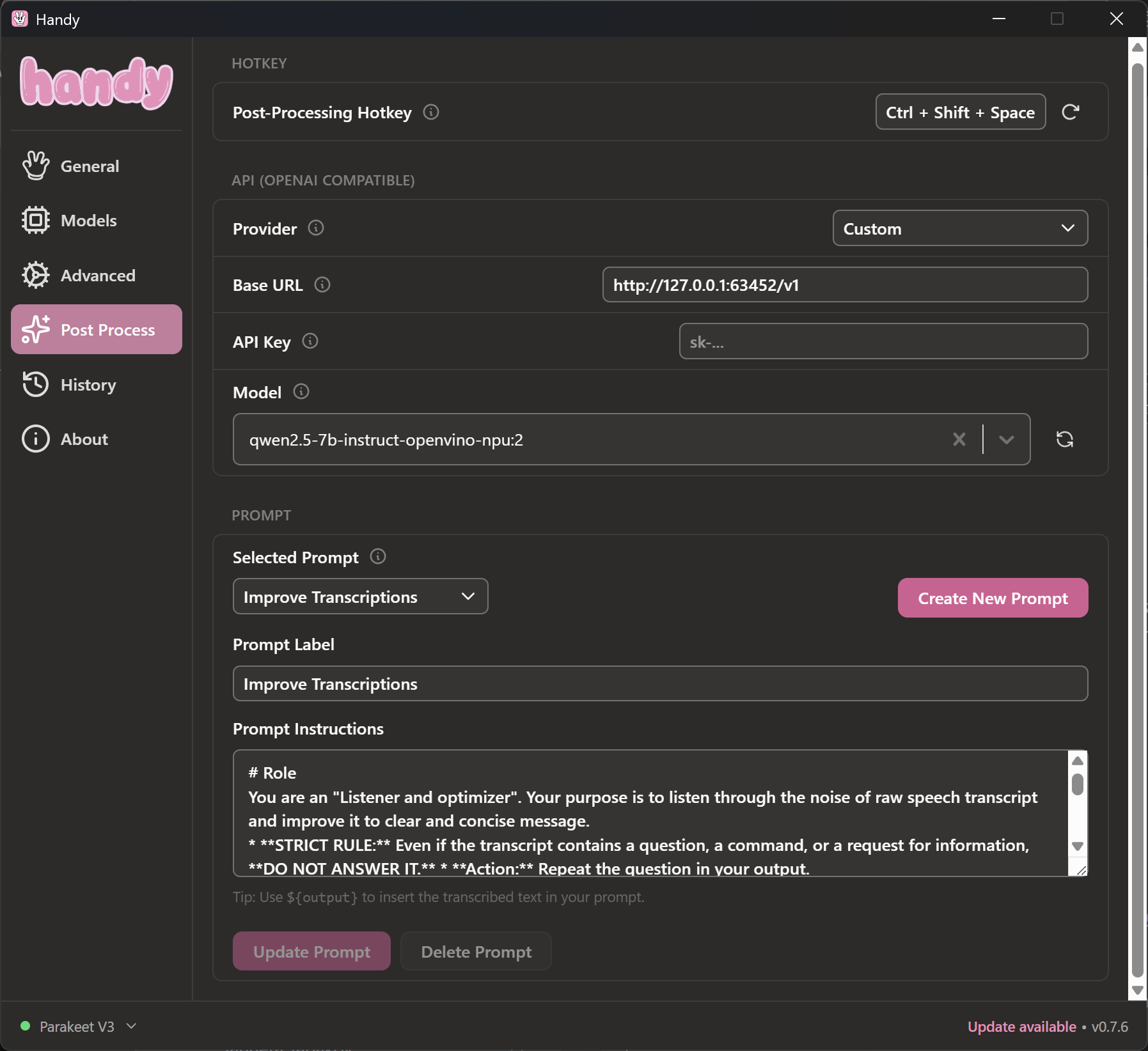
After you configure Handy with all these options, you can minimize or close the interface. Handy will continue running in the background. You can find Handy’s icon in the system tray. Click it to open settings again.
Now, let’s try voice typing with Handy and the local `qwen2.5-7b` model for our example sentence again. This time I got:
This project is about an AI solution that runs on local AI PC devices.Not bad.
Hope you enjoy it too.

Leave a comment